Add Tables
The Add Tables flow lets you bring new BigQuery tables into the platform, and lets you pick up new columns BPP has detected on tables it already knows about. Use it any time your dataset grows and you want the change available for AI models, audiences, and signals.
Video tutorial — A short walkthrough is available here: Watch on Loom (TODO!)
How to start
Open the Datasource Manager page (system menu, gear in the header) and click Discover New Tables.
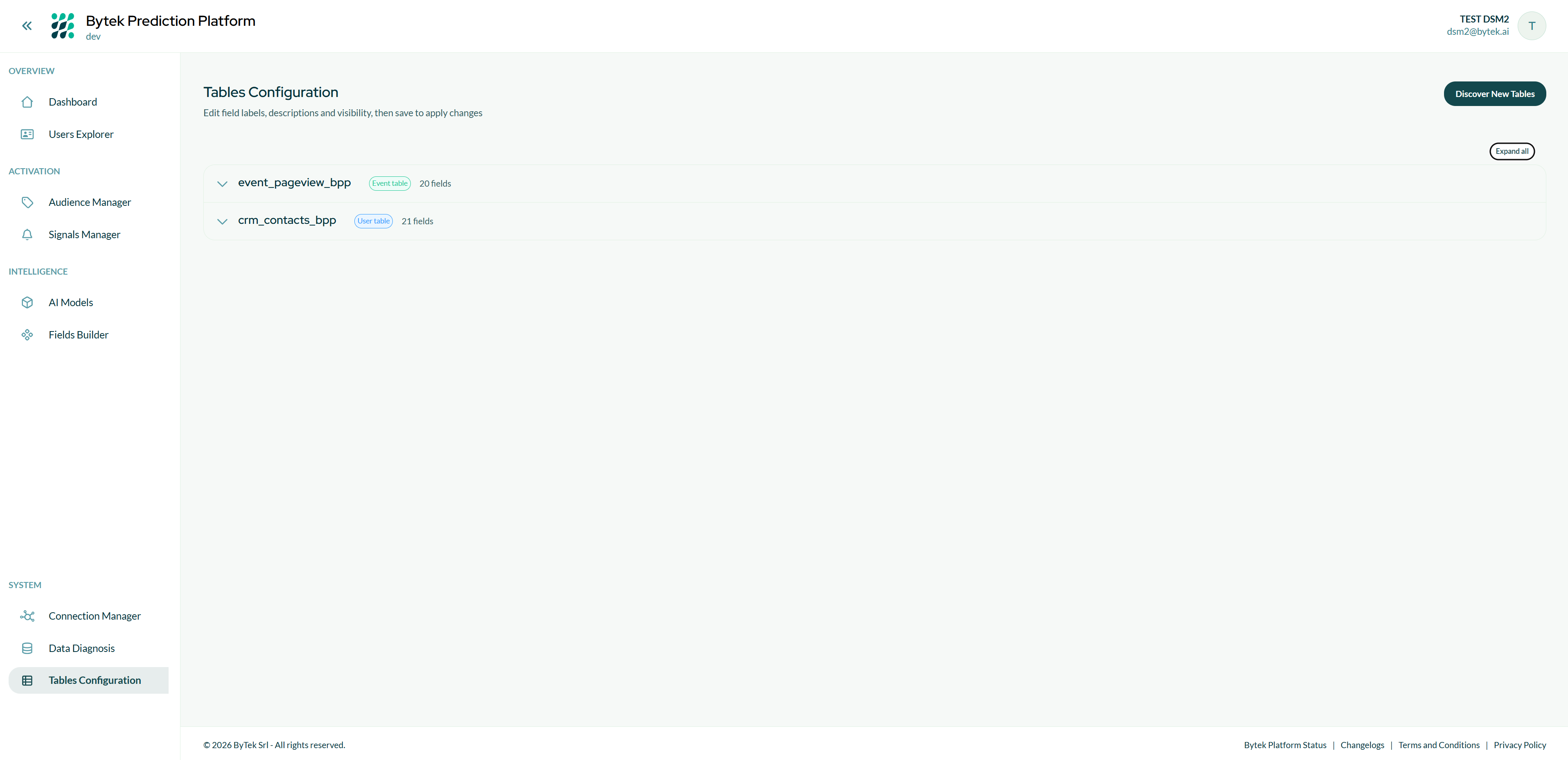
BPP will scan your BigQuery dataset for tables not yet part of the active schema.
The flow
Add Tables has its own review flow — it does not re-run the 5-step onboarding wizard. BPP analyses the new tables, you review them, and you activate. The Used ID Summary screen shows all identifier groups together (new and already active), and fields belonging to the new tables are marked with a New! badge so you can quickly verify compatibility.
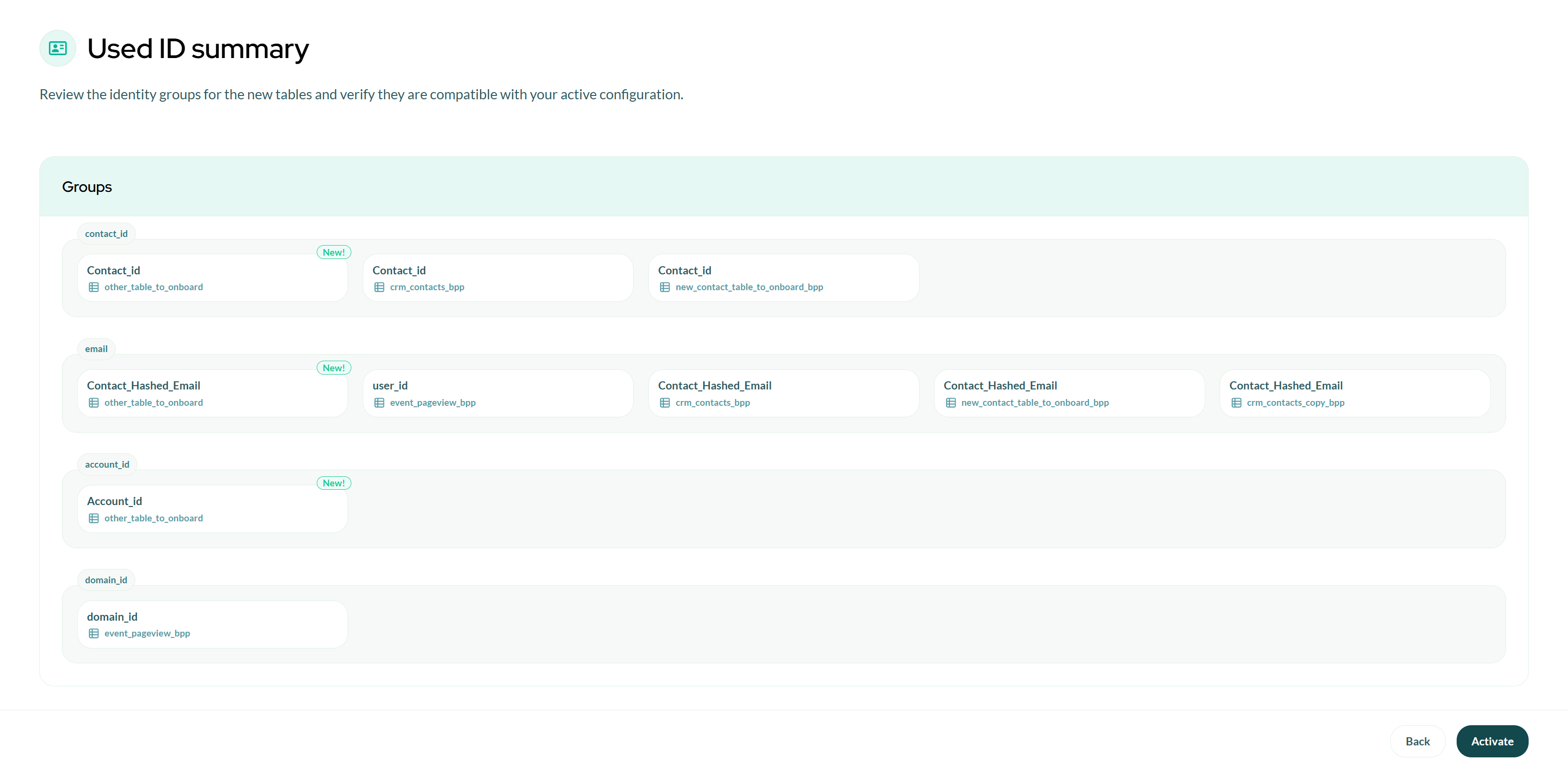
Important: After clicking Activate and confirming, the reconciliation of the new tables starts. Click Back to the platform to keep working while it runs. Until it finishes, a banner says that data is loading and the Run button of audiences, signals and profile syncs is disabled. The new event tables are read for the last 7 days first, and their history arrives with the next nightly update. See While the first reconciliation runs.
Column drift on existing tables
Add Tables isn't only for brand-new tables. BPP also compares the live BigQuery columns of tables it already knows about against what's registered. When it finds new columns, the review screen shows a New columns detected on existing tables panel, grouped by table.
Select the columns you want and click Add n to schema. They join the existing table as regular fields: you can then edit their labels, descriptions and visibility in the Datasource Manager. This is a scoped update — it does not onboard the table again and does not touch the fields already active.
A column added this way is not an identifier. To use a new column as a user identifier, contact BPP.
If a drifted column shows up unexpectedly, check the Schema Integrity Check page — the same mismatch is what that check flags at login.
Edge cases
No new tables found: If BPP does not detect any new tables, a "No New Tables Found" message is shown. Click Back to Datasource Manager to return.
Analysis error: If the analysis fails, an error screen is shown. Contact support and share the error details.
Reset: At any point during the review phase, click Reset to cancel the flow and return to the operational state without making any changes.
Tips
- You can run the Add Tables flow as many times as needed — repeat it whenever new tables are added to your BigQuery dataset.
- Exports can't be run manually while the new tables are reconciled. Plan activations outside the hours when you export.
- Tables added via this flow behave exactly like tables configured during the initial onboarding.